


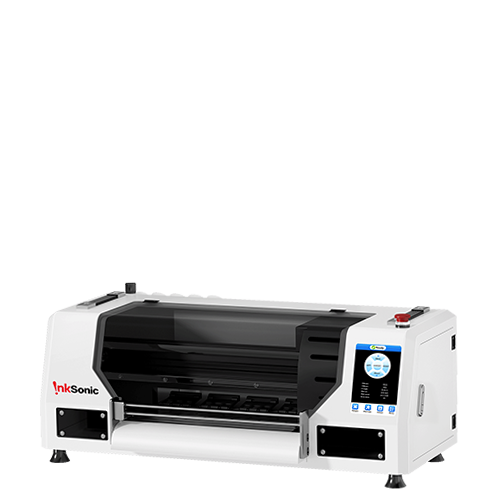


If your prints look blurry, you probably have a problem with your printer or your printer settings. Should be fine but I don´t think people will like the smudging on the all-white top bezel, with glasses. “Why is there smearing after I printed it?” is among the most frequently asked questions related to DTF printers — mainly when you start using them or switch to a different ink or film. If you have experienced smearing, smudging, or streaking on your newly printed designs, just know you are not alone in that issue.
Ink smearing is not only frustrating, but it can also ruin product, bring production to a crawl, and make your finished shirts look unprofessional. The good news is that smearing is normally brought on by something straightforward — and has an even easier fix.
In this guide, we will lead you through the main reason your DTF printer is smearing ink, how to fix it swiftly, and how to prevent it from happening again.

Recognizing Why Printing Ink Smears
DTF printing is a precise process. It involves the application of wet ink to a PET film, treating it with adhesive powder, curing the powder later, and imprinting the image on fabric. Because the ink is wet in parts of the process, temperature-humidity imbalance, imbalance in film or ink density can result in smudging.
Smearing typically appears as:
Streaks or blotches on the PET film.
Ink rubbing off easily when touched.
Uneven drying or pooling in certain areas.
Distorted details in fine-line designs.
When you ask, “ Why is my ink smearing after printing?” the answer usually lies in one of five key areas: printer settings, ink type, film surface, environmental conditions, or maintenance issues. Let’s break them down.
1. Too Much Ink — Oversaturation in RIP Settings
One of the leading causes of DTF printer smearing is excessive ink output.
If your RIP software’s ink limit is set too high, your printer lays down more ink than the PET film can hold. Since DTF film isn’t absorbent like paper, the wet ink pools on the surface, causing streaks or smears when the film moves through the rollers.
Fix:
Open your RIP software (like Acrorip or FlexiPrint).
Lower the ink density or saturation by 5–10% increments.
Print a small test patch after each adjustment.
Ensure the white layer prints after, not before, your color layers for optimal balance.
Pro Tip:
Use ICC color profiles that are made for your specific DTF ink brand and film type. This ensures correct ink volume and color accuracy.
2. Improper Drying or Curing Temperature
After printing, the curing process must melt the powder evenly. If your DTF oven temperature is below this recommended temperature, the powder will not completely connect with the ink layer, and will feel sticky or easily smudged. If the DTF oven temperature is above this recommended temperature, the powder can burn or even bubble the ink.
Fix:
Preheat the cure oven to the recommended temperature (usually 100–120°C for 2–5 min, according to the powder).
Don’t move or touch the film until it is completely cured.
If you are using a heat press rather than an oven, leave the press slightly open so that it does not directly touch the ink layer.
Pro Tip:
A consistent DTF oven setup produces far fewer smearing issues than manual heat press curing. The oven provides uniform heat and ensures proper adhesion.

3. High Humidity or Dusty Environment
Environmental factors are frequently ignored but have a great effect on the quality of the print. Ink can take longer to dry in high humidity and may bead or run on the film. On the other hand, the dust or any other particles in the air may stick to the wet ink and creates drag streaks on the print.
Fix:
Keep your print room environment at a relative humidity of 40–60% and maintain a constant temperature of around 20–25°C.
Use an air purifier or an anti-static mat to help keep contaminants to a minimum.
Store your films in a clean, dry storage area away from moisture and sun light.

4. Poor-Quality or Expired Ink
The quality of DTF inks varies. Low-quality inks or expired inks may have a viscosity that is not stable and will flow unevenly and after extended time may take longer to dry. If you use low-quality inks it may not adequately bond to the PET film or may have debris that causes a misfire of the nozzles.
Fix:
Use only the best quality professional DTF inks suitable for your printer model.
Keep the inks in a cool and dark environment, and shake the bottles well before use.
If ink has been opened for multiple months discard it and use a new batch.
Pro Tip:
InkSonic DTF inks, for instance, are formulated with Japanese pigments and German solvents for smooth flow and rapid film adhesion — significantly reducing smearing and clogging issues.
5. Printhead Contamination or Misalignment
If you've tried everything and your ink is still smudging, the printhead could be the problem. Dried ink, dust, or lint may be deposited around the nozzles and the printhead draws too much ink from the film.
Fix:
Run a nozzle check to identify missing lines.
Do a light cleaning of the printhead from the printer software.
Use a lint-free cloth and cleaning solution to clean the edge of the printhead and the capping station.
If alignment is not correct, also use your printer’s calibration utility to adjust the head.
Pro Tip:
Routine cleaning with the DTF cleaning solution ensures that your printhead, cap top and ink lines are clean from residue — vital for preventing ink smudging and streaking.
6. Using the Wrong Type of Film
DTF printing relies heavily on the film surface. Some films have slower drying coatings or poor ink-receptive layers, which can cause smudging during the transfer process.
Fix:
Choose high-quality PET film specifically labeled for DTF printers.
Avoid glossy or cheap films intended for regular inkjet transfers.
If smearing occurs even after curing, switch to a “premium cold-peel” film with better ink adhesion.
7. Mechanical Issues: Roller Marks and Belt Smears
Sometimes, smearing isn’t caused by ink or temperature — it’s mechanical. If your printer’s rollers or carriage belt have ink buildup, they can leave faint streaks or drag marks on the film.
Fix:
Clean the rollers gently with a microfiber cloth and isopropyl alcohol.
Avoid over-powdering, which can cause loose powder to stick to the rollers.
Check for uneven film feeding or tension issues.
How to Prevent Ink Smearing in the Future
The most effective way to address “why is my ink smearing after printing” is to prevent it beforehand. Here is a simple checklist to prevent problems and keep your prints flawless every time:
Keep the room temperature and humidity consistent.
Use good quality DTF inks and films.
Calibrate your printer regularly.
Keep rollers and print heads clean.
Make sure that your DTF oven is on the right cure temperature.
Keep your supplies in airtight, dust-free environments.
It’s the cumulative effect of these little habits that really make a big difference daily print consistency and professional appearance.

When to Replace DTF Printer Parts
If smearing persists after cleaning and adjusting the settings your printer may require part replacement. Over time, capping stations, dampers or wipers can deteriorate, leading to poor sealing and ink leakage.
Early replacement of these parts prevents damage to the printhead and costly downtime. Check your printer manufacturer’s maintenance guide or explore InkSonic DTF printer parts and accessories for compatible replacements.
Conclusion
Initially, it's difficult to understand why the ink blurs after printing, but cures are simple it when you know how DTF works. All ink bleed related issues can be related to over saturation of the ink, the humidity, quality of the consumables or the maintenance.
With a bit of environmental control, printer maintenance, and good quality inks and films, you can prevent smudging and get sharp, professional results on every print.
Just keep in mind: Your DTF printer is only as good as the care you give it. Dote on it, and it’ll reward you with flawless prints that dazzle every customer.


