









Introduction
If you have been searching for how to create gang sheets in Canva, you are right where you need to be! Canva has become one of the most widely used, price-friendly options for creating DTF (Direct-to-Film) transfer layouts. Its friendly interface and price point, combined with creative flexibility make it a great option for small business owners, hobbyists, and even professional designers to create a gang sheet without spending money on expensive software.
Instead of needing to pay extra for advanced platforms, Canva's easy to place multiple designs on one sheet, and it is an easy alternative to a free gang sheet builder. By the time you've read through this tutorial, you'll have a thorough grasp of how to create a gang sheet on Canva ready to be printed to perfection.
What is a Gang Sheet?
Before diving into the tutorial, let’s clarify what a gang sheet actually is.
A gang sheet is a single large film sheet that contains multiple designs, logos, or images. Instead of printing one design per sheet, you can fill it with as many designs as possible. This approach:
Saves money by maximizing space on each sheet.
Reduces waste, since you’re not leaving empty film areas unused.
Speeds up production, especially if you’re preparing multiple orders at once.
Simplifies cutting and pressing, because all your designs are already grouped.
In DTF printing, learning how to make a gang sheet for DTF transfers is one of the best ways to improve efficiency and keep costs low.
Pros of Using Canva for Gang Sheets
Here’s why Canva is a go-to platform when you need to create a gang sheet on Canva:
- Affordable pricing plans: Canva Pro starts at a mere $14.99/month, or get the best deal with the annual option at $119. You can even buy team plans starting at $300/year for 5 people.
Intuitive interface: with drag-and-drop features, anyone can learn to design within minutes.
Pre-designed templates: Canva's extensive collection enables adding in elements and text lightning-fast and effortless.
Collaboration tools: Share and collaborate on projects with clients or team members.
Cross-device functionality: Since Canva is web-based, you can create on your computer, tablet, or smartphone.
Cons of Using Canva
Before you build a gang sheet on Canva, keep these limitations in mind:
Length restrictions: Canva only supports a maximum document length of 84 inches. If you need 120″, you’ll need to split it into multiple files (e.g., two 22×60″ documents).
Requires internet: Canva doesn’t work offline, so a steady connection is necessary.
Step-by-Step: Make It on Canva
Step 1: Creating a Canvas
Log in at Canva.com.
Click “Create a design” → “Custom size”.
Set the width to 22 inches and adjust the height to match your purchase size (up to 84″).

- Example: For a 120″ sheet, create two documents at 22×60″ each.

Step 2: Adding Designs
Upload your artwork under the “Uploads” tab.

- Or choose from Canva’s Elements library.


Use the “Position” tool to align and size each element correctly.
Leave 0.25–0.5 inches of spacing between designs to make cutting easier.

Step 3: Downloading
- Click “Share” → “Download”.
Choose PNG format.
Increase the size to maximum for the best quality.
Enable Transparent background.
Download your file.

Step 4: Submitting for Printing
- Import your PNG file into RIP software to prepare for printing.
Or, if you’re experienced, you can design the gang sheet directly in your RIP program.
Tips for Optimizing Your Gang Sheet
Want to take your Canva gang sheets to the next level? Keep these pro tips in mind:
Rotate designs: Rotate designs to fit more designs in small spaces.
Resize wisely: Shrink small graphics so that you don't waste film.
Use guides: Canva has rulers and grid lines—use them to ensure equal spacing.
Keep margins clear: Leave some additional border area around the sides of your sheet.
Upload high-resolution artwork: Start with 300 DPI files to avoid pixelation.
Save a template: Create a single master Canva document that you can reuse over and over whenever you need to make a gang sheet.
Common Mistakes to Avoid
When learning how to make it, beginners often run into these pitfalls:
Forgetting to select transparent background before downloading.
Leaving too little space between designs (makes cutting difficult).
Uploading low-resolution artwork that prints blurry.
Trying to create over 84″ sheets in Canva without splitting them.
Avoiding these mistakes will save time and prevent costly reprints.
How to Make Money Creating Gang Sheets
Learning how to make a gang sheet in Canva isn’t just a way to save on your own projects—it can also become a profitable side hustle or full-time business. Here’s how you can turn your Canva skills into income:
Offer sheet building as a service: Many small business owners and crafters struggle with preparing designs correctly. You can charge a fee to build a gang sheet for them using their artwork.
Sell pre-made sheets: Create themed collections (holiday designs, small business logos, trendy sayings) and sell them as ready-to-print files.
Bundle services with printing partners: Work with local shops or online print providers and upsell your design + gang sheet services alongside the printing.
Teach others: Once you’re experienced, you can create tutorials, classes, or eBooks showing beginners how to use Canva as a free gang sheet builder alternative.
By starting small—charging $10–$30 per gang sheet—you can quickly grow your customer base. And as demand increases, you can expand beyond just design.
Expanding Into DTF and UV DTF Printing
Once you’ve mastered how to make a gang sheet for DTF transfers, the natural next step is to control the production side by investing in your own printing equipment. This opens the door to much higher profit margins, because you won’t just design—you’ll also print and ship transfers directly to customers.
DTF Printing: With a DTF printer, you can print transfers onto PET film, apply hot-melt powder, and heat press the design onto apparel. You’ll keep more profit per order compared to outsourcing.
UV DTF Printing: This newer technology allows you to print full-color, vibrant transfers that can be applied not only to fabric, but also to rigid substrates like glass, wood, metal, and acrylic. That makes it possible to sell custom mugs, tumblers, keychains, signage, and more.
With Canva for design and DTF/UV DTF printing for production, you could set up a whole custom print business, from the digital design services to the printed product.
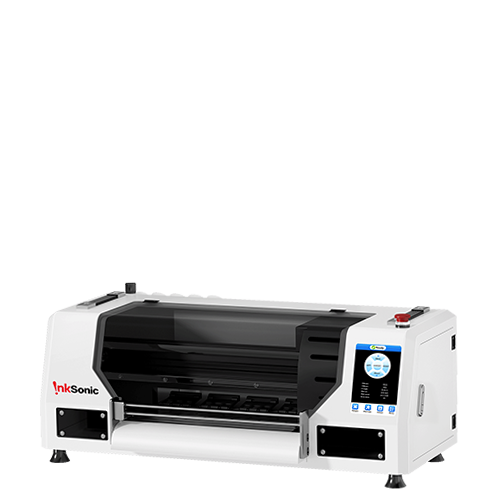
Recommended Printer: InkSonic XP600
If you're serious about DTF printing, the InkSonic XP600 is our recommendation. It's one of the best value and most reliable entry-level DTF printers of all time and it's made for beginners and small businesses with the intent to grow.
Why opt for the InkSonic XP600?
XP600 printheads for high-speed, detailed prints.
Compact-sized, perfect for home or studio setups.
Compatible with a wide range of DTF films and powders.
Excellent color accuracy for vibrant designs.
Easy maintenance and strong community support.

With the InkSonic gang sheet printer, you can free yourself from just designing gang sheets and start printing transfers in-house, with full control over the process and maximum profits.
Next Steps
Now that you know how to make a gang sheet on Canva, you have the tools to:
Save money on your own DTF transfers.
Offer design services to others.
Expand into DTF and UV DTF printing for even greater earning potential.
Upgrade your workflow with reliable equipment like the InkSonic XP600.
Whether you’re just learning how to build a gang sheet or ready to launch your own DTF transfer shop, Canva plus the right equipment can help you turn creativity into a profitable business.
Conclusion
With Canva, creating a gang sheet for DTF transfers is quick, affordable, and beginner-friendly—perfect for turning your designs into professional-quality prints.
You can easily create gang sheets using Canva, and you can turn this creativity into profit using a DTF printer. Now that you know how to make a gang sheet in Canva, you can save time and money while preparing your DTF transfers. Whether you’re creating custom T-shirts, hoodies, or other apparel, Canva is a powerful alternative to a free gang sheet builder and makes it easy to build a gang sheet from scratch.
FAQs About Canva Gang Sheets
Q1: Can I make a 120-inch on Canva?
Not directly. Canva supports up to 84 inches in length. For longer gang sheets, split your design into two or more files (e.g., 22×60″).
Q2: What file type should I download for DTF transfers?
Always export as a PNG with transparent background, at the maximum size (3.125×).
Q3: Do I need Canva Pro?
While you can use the free version, Canva Pro is better since it unlocks transparent background downloads—a must-have for DTF transfers.
Q4: Is Canva better than Photoshop or Illustrator?
For beginners, Canva is faster and easier. For advanced users, Photoshop/Illustrator gives more control and allows larger sheet sizes.
Q5: Can Canva replace a free gang sheet builder?
Yes and no. Canva gives you flexibility and design tools, but a free gang sheet builder may offer auto-arrange features or support larger files. The best choice depends on your needs.


